| Apex
Webmail Address Book Migration
Please
follow the following instructions to migrate your contacts
from any program that has the ability to export your
list to a CSV (comma-separated) file. Most programs
such as Microsoft Outlook, Mozilla Thunderbird, and
others fully support this.
 Click
here for a printer-friendly version of these instructions. Click
here for a printer-friendly version of these instructions.
1.
Export your address book or contacts list. Unfortunately
with the large variety of software we cannot supply
instructions for each program. Check the documentation
with your email software to export the list to a CSV
(comma-separated) file.
2.
In Webmail, go to the "Address Book" button
near the upper right corner of the screen.

3.
Click the "Import Contacts" button on the
toolbar.

4.
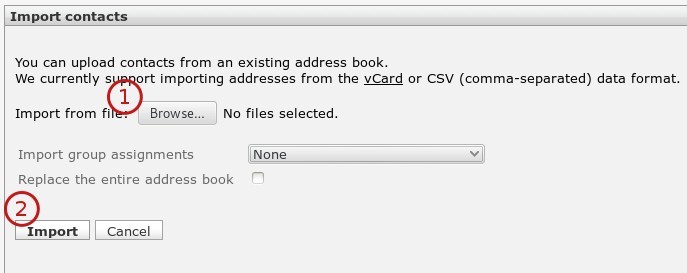
Click the "Browse" button to select the CSV
file containing your data exported from your email software.
Click Import when you are ready to import the entries.
5.Import
is complete!
Click
here for a printer-friendly version of these instructions.
|